Table of contents
From CAD file to marketing visual
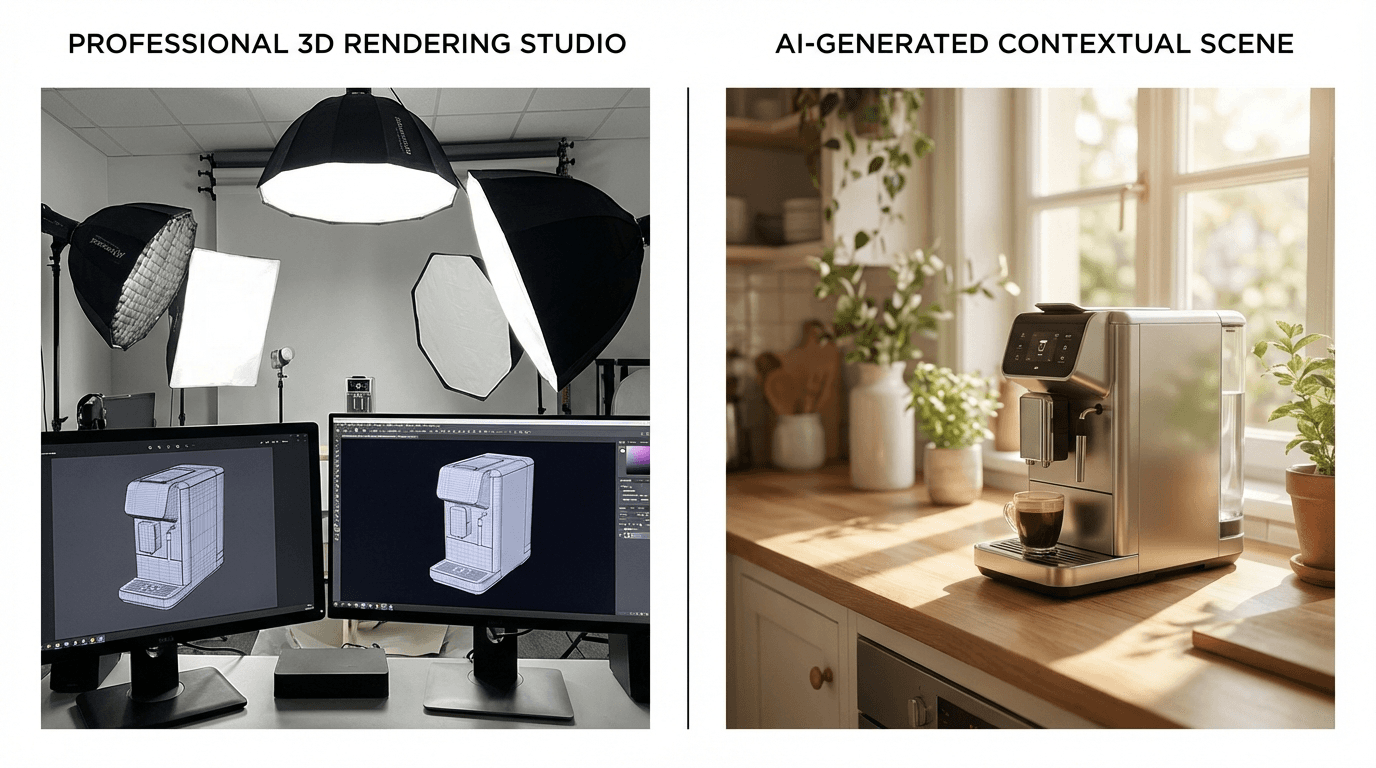
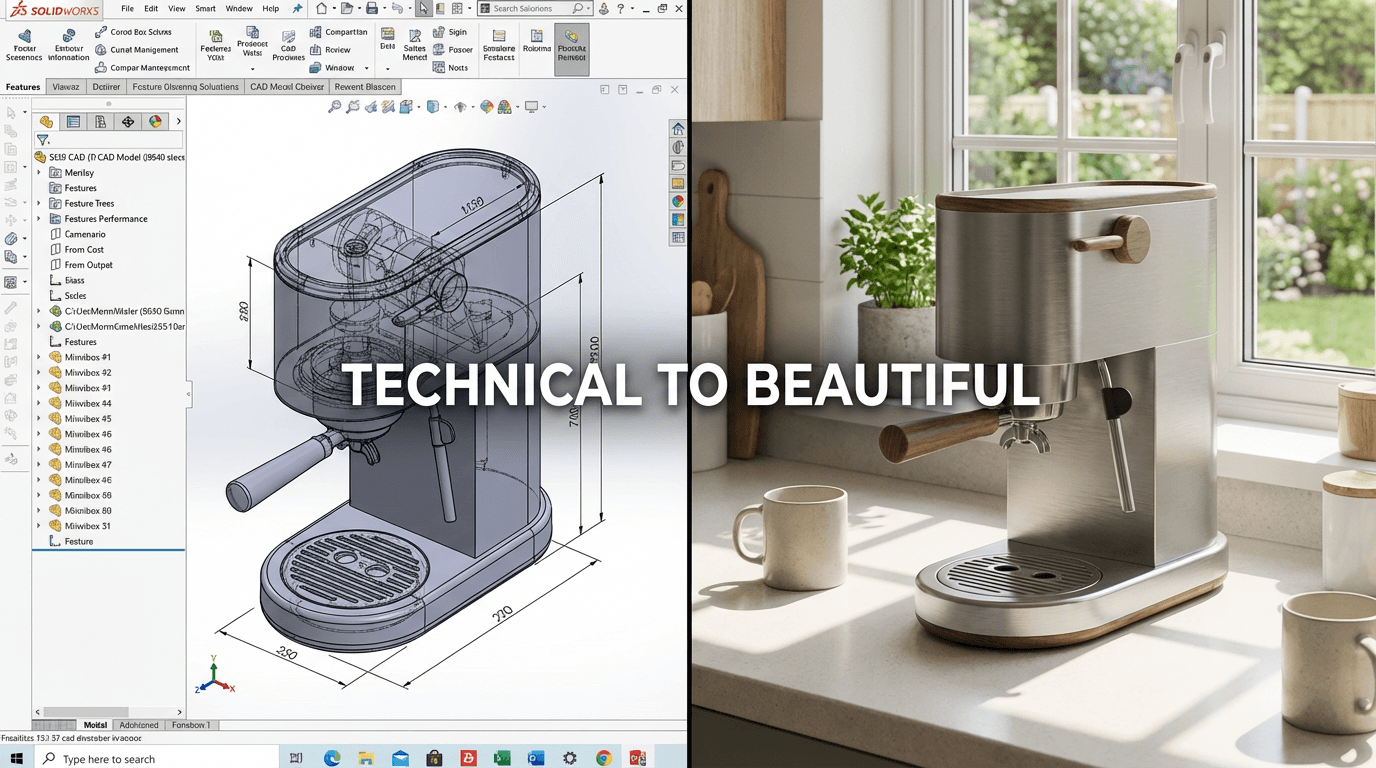
SolidWorks and Fusion 360 are the reference software for industrial design. But their built-in rendering capabilities are not always enough to create impactful marketing visuals. Renders on neutral backgrounds lack context and emotion.
Prototype Scene fills this gap by transforming your CAD exports into real-context visualizations. Here is how to optimize your export workflow for the best results.
Export from SolidWorks
In SolidWorks, use PhotoView 360 or Visualize to generate your render. A few important settings to follow:
- Select a solid white or transparent background (no SolidWorks scene)
- Enable realistic materials for better AI results
- Export as PNG to preserve background transparency
- Minimum recommended resolution: 2000 x 1500 pixels
If you use SolidWorks Visualize, the render quality will naturally be better. Export with the same neutral background settings.
Export from Fusion 360
Fusion 360 offers a powerful built-in rendering engine. To prepare your export:
- Navigate to the Render workspace
- Set up a scene with white background or disable the background
- Apply desired materials and finishes to your model
- Run a local or cloud render in PNG format, minimum 2000px resolution
Fusion 360's cloud rendering is free and produces high-quality results, ideal for contextual integration.
Best practices for optimal results
Regardless of your CAD software, follow these recommendations to maximize AI integration quality:
Choose a relevant viewing angle that shows the main lines of your design. Avoid overly close views or extreme angles that would complicate the contextualization.
Ensure your render lighting is uniform and neutral. Overly strong shadows or colored lighting can interfere with the AI's automatic harmonization.
Complete workflow in 5 minutes
The complete process, from CAD export to final contextual visual, takes less than 5 minutes. Export your render, upload it to Prototype Scene, select the appropriate environment, and launch the generation.
You can then iterate quickly: test different environments, adjust custom instructions, or use the improvement mode to refine the result. Each iteration takes only seconds.